Job Status Dashboard
The Job Status Dashboard provides a complete audit trail of every API job submitted under your account, whether from the API, the API Playground, or the CLI (when connected to your account). Open it from Job Status Dashboard in the left Workspaces sidebar.
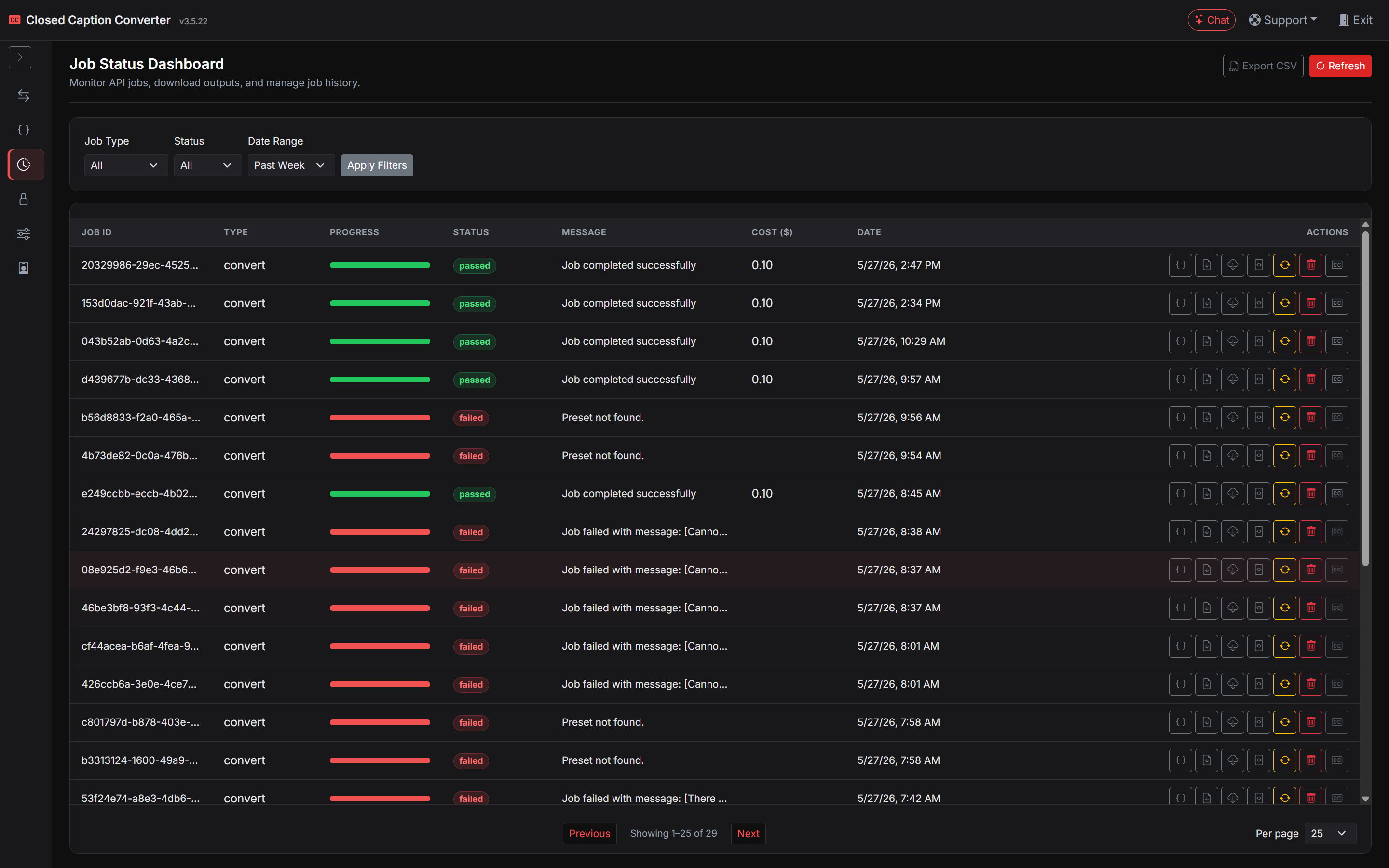
What Is Recorded
Every job submission creates a history entry that records the job ID, timestamp, job type, source and target profiles, frame rate, job status, and any error messages returned for failed jobs. For jobs that produced output files, the history entry retains links to download the source, target, and job response.
Filtering and export
Above the table you can filter jobs by:
- Job type — for example
convert,transcribe, ortranslate - Status — passed or failed
- Date range — last 24 hours, week, month, year, or a custom range
Use Refresh to reload the latest data from your account. Enable Auto-refresh (15s) to poll for updates every 15 seconds; this reloads the current page of results without changing your filters or pagination. Your auto-refresh preference is saved in the browser. Export CSV downloads the current filtered view for reporting or offline analysis.
The table supports pagination (25, 50, or 100 rows per page). Your page size preference is saved in the browser.
Job Statuses
| Status | Description |
|---|---|
completed / passed | The job finished successfully and output is available. |
failed | The job encountered an error during processing. The error message is shown in the job detail view. |
processing | The job is currently being processed. Common for long-running jobs such as transcription. |
queued | The job has been accepted and is waiting in the processing queue. |
Per-job actions
Each row in the dashboard provides actions to work with that job:
| Action | Description |
|---|---|
| View JSON | Open the full API response in a modal and copy it to the clipboard. |
| Download | Download the source file, target output, or job response JSON. |
| Retry | Resubmit the job with the same configuration. |
| Delete | Send DELETE /jobs (with job ID) to remove the job and its stored files from the API. |
| Open in Caption Editor | Available for passed jobs — opens the job in the built-in Caption Editor (powered by Closed Caption Creator) with its media, source, and target captions loaded. Use the editor's Save button to download the edited captions in the job's target format. |
Using the dashboard for debugging
When a job fails, the Job Status Dashboard is the first place to investigate. The detail view for each failed job includes the full error message returned by the processing engine, the Job Description that was submitted, and the source file name. Common causes of job failures include:
- A mismatch between the selected source profile and the actual file format (for example, selecting the Scenarist SCC profile for a file that is actually a TTML XML file).
- Encoding option values that are invalid for the selected profile.
- A
media_pathURL that the server cannot access (expired pre-signed URLs, private endpoints, or incorrect permissions). - Malformed JSON in the
configfield.
Webhook Notifications
Rather than polling the API for job status, you can configure a webhook URL in your Job Description. When the job completes (whether successfully or with a failure), Closed Caption Converter will POST a notification to the webhook URL with the job result payload. This is the recommended approach for high-volume automated workflows where polling would be inefficient.
{
  "job_type": "convert",
  "source_profile": "SubRip Video Subtitle Script",
  "target_profile": "WebVTT",
  "webhook": "https://your-server.example.com/webhooks/cc-converter"
}
The webhook payload is the same JSON structure as the synchronous API response, allowing you to process it with the same code.