Job Presets
A Job Preset is a named Job Description stored in the Closed Caption Converter dashboard. Instead of including the full JSON configuration in every API or CLI call, you can create a preset once and reference it by its assigned Preset ID in subsequent requests. Presets reduce the amount of code in your integration, prevent configuration drift between environments, and make it easy for teams to share standardised workflows.
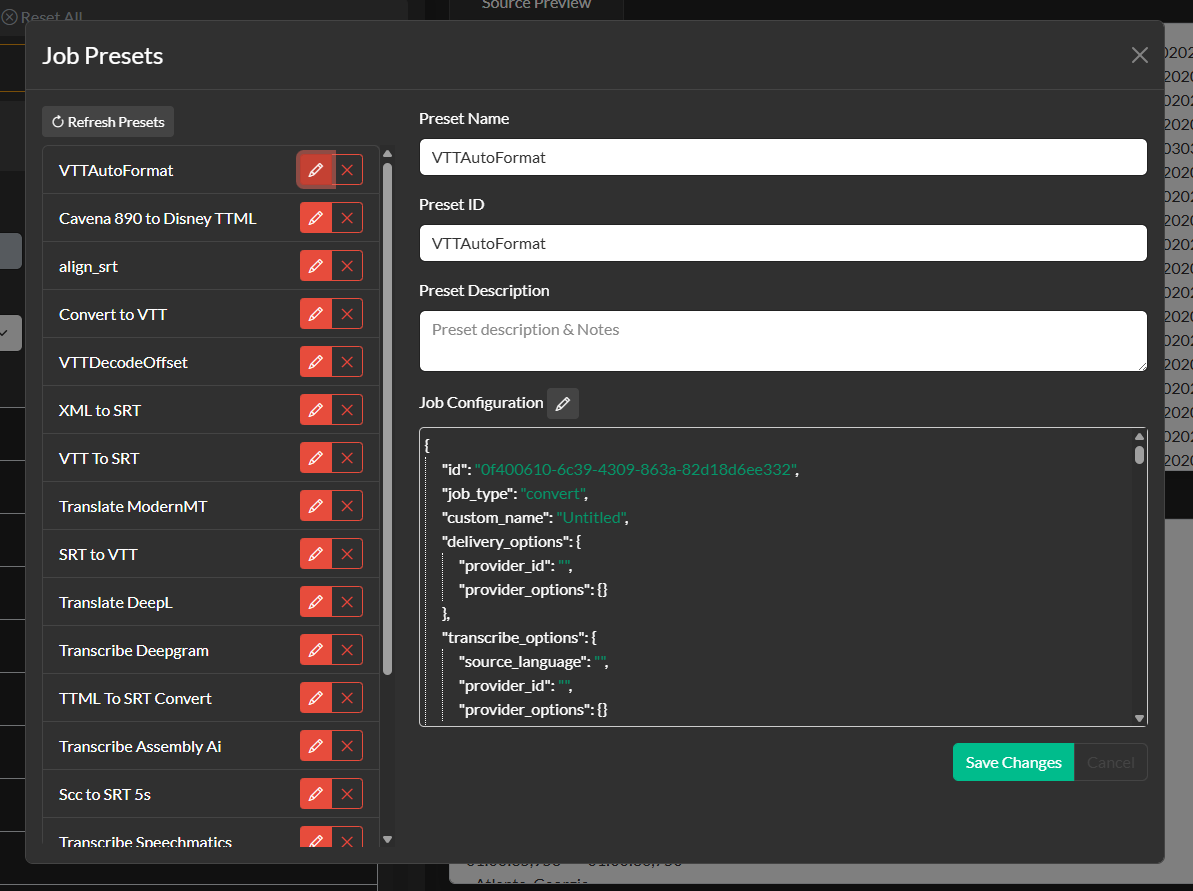
Creating a Preset
Presets are created from the web application and managed from the Presets dialog in the top navigation.
To create a new preset from the web application, configure your job exactly as you want it, open the Backup Settings section, and click Save Preset. You will be prompted for a preset name and preset ID before the configuration is stored.
To review or edit an existing preset later, open Presets from the top navigation and update the saved Preset Name, Preset ID, Preset Description, or Job Configuration JSON directly in the preset manager.
Using a Preset in the API
To use a preset, pass the preset_id in your API request body instead of a config object:
curl -X POST https://api.closedcaptionconverter.com/jobs \
  -H "x-api-key: YOUR_API_KEY" \
  -F "source=@/path/to/input.srt" \
  -F "preset_id=your-preset-id-here"
The server loads the stored Job Description and processes the file exactly as if you had submitted the full JSON. No additional configuration is required in the API call beyond the source file and the preset ID.
Using a Preset in the CLI
The CLI supports presets in the same way as the API. Pass the preset ID in the job configuration file:
{
  "preset_id": "your-preset-id-here"
}
A network connection is required to resolve the preset from the server when using presets with the CLI. For fully offline environments, store the complete Job Description locally instead of using preset_id.
Managing Presets
Presets can be viewed, edited, and deleted from the Presets dialog in the dashboard. Editing a preset changes the stored Job Description but does not affect any jobs that have already been submitted. Deleting a preset makes its ID invalid for future jobs but does not affect job history.
Naming conventions are important when using many presets. A consistent naming scheme (for example, [client]_[source-format]_to_[target-format]_[version]) makes it easy to find the right preset without needing to inspect its contents.
Preset IDs in Code
Preset IDs are UUID strings. Store them in your application's environment configuration or secrets manager rather than hardcoding them in source code. This makes it easy to swap presets between environments (development, staging, production) without changing application code.
# Example: store as an environment variable
CCCONVERTER_PRESET_SRT_TO_STL="abc12345-0000-0000-0000-000000000001"

# Use it in a curl request
curl -X POST https://api.closedcaptionconverter.com/jobs \
  -H "x-api-key: $CCCONVERTER_API_KEY" \
  -F "source=@input.srt" \
  -F "preset_id=$CCCONVERTER_PRESET_SRT_TO_STL"