Getting Started
This guide walks you through your first Closed Caption Converter session, from signing up through to running your first conversion. Closed Caption Converter is available as a web application, an API, and a CLI tool. All three share the same underlying conversion engine, the same format support, and the same filter library — only the interface differs.
Creating an Account
To use the Closed Caption Converter web application or API, you will need to create an account at app.closedcaptionconverter.com. A free 7-day trial is available with no credit card required, giving you full access to all features including API calls, filters, and access provider integrations.
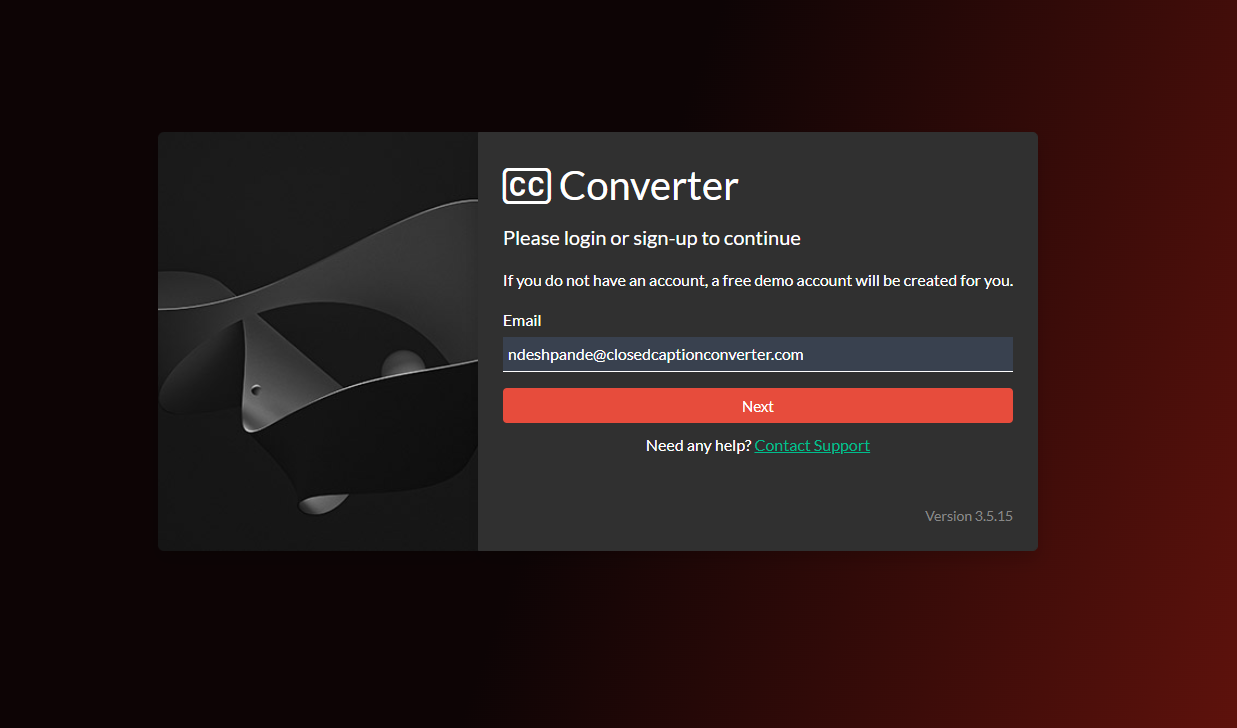
Once registered you will be taken to the main workspace. The top navigation provides direct access to API Keys, Access Providers, Presets, Job Description, and API Job History. The CLI can be deployed for offline use with a locally-provided license file, while the web application and API require an online account.
Using the Web Application
The web application runs in your browser. You still need an internet connection to authenticate and load the application, but caption files are never uploaded to any server during normal conversion work. Decoding, filtering, and encoding are performed locally using WebAssembly. This makes the web application suitable for sensitive content and controlled environments that permit browser access to the application itself.
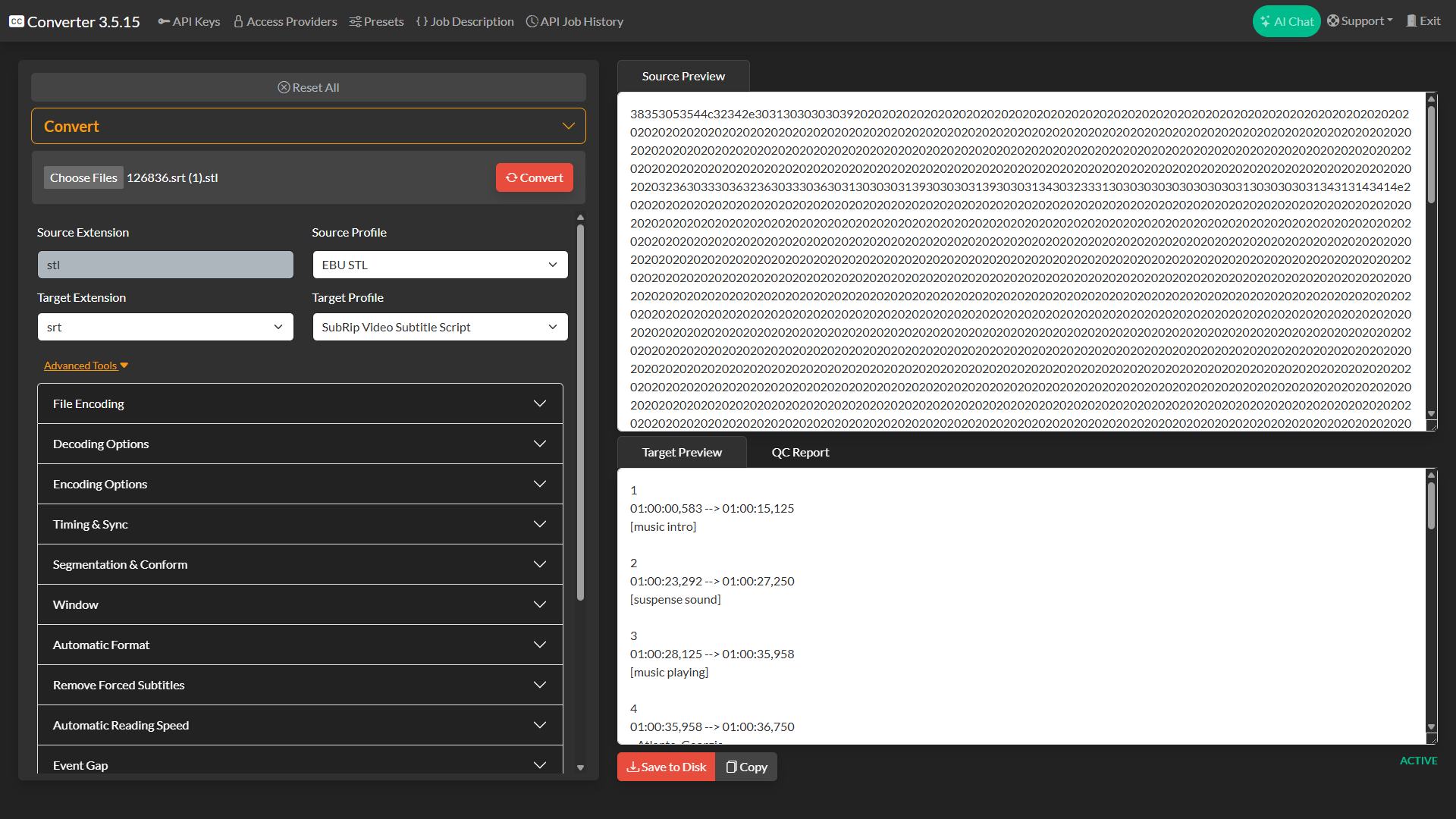
To convert a file, click Select File and choose one or more caption files from your computer. Closed Caption Converter will automatically attempt to detect the source format based on the file extension and content. You can then select your Target Profile (the output format), adjust the Frame Rate, and optionally enable any Filters you want applied before encoding.
Once you are satisfied with the configuration, click Convert to process the file. The output file will be available for download immediately. No data leaves your device at any point.
Selecting Profiles
The Source Profile tells the engine how to read your input file. In most cases the web application will detect this automatically, but you can override the selected profile by opening the source profile dropdown and choosing from the full list. The Target Profile determines the output format. You can pick any encode-capable profile from the dropdown regardless of what the source format is.
For a complete list of all supported source and target profiles, see Profiles & Formats.
Configuring Filters
Closed Caption Converter exposes most processing controls through the Advanced Tools panels beneath the profile selectors. Open the panels you need, such as Timing & Sync, Automatic Format, Automatic Reading Speed, Event Gap, Search & Replace, Caption Style, or Reposition, and configure them inline. Some panels are true format-agnostic filters, while others only appear when the selected source or target profile supports them.
For a full description of every filter and its settings, see Filters.
Encoding & Decoding Options
Many profiles expose format-specific configuration that controls how they read or write files — for example the character encoding of a text file, the channel assignment for SCC data, or language metadata for EBU-STL. These options appear automatically when you select a profile that supports them. See Encoding & Decoding Options for more detail.
Your First API Job
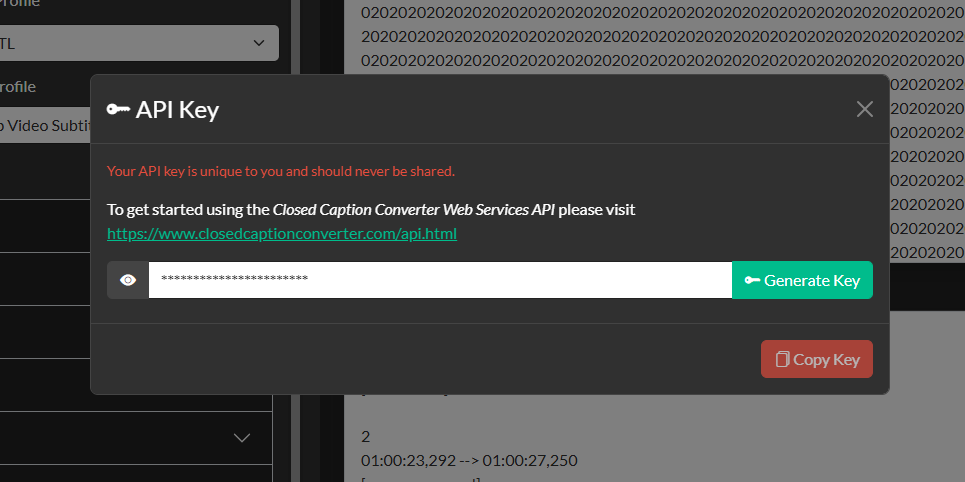
If you plan to use the Closed Caption Converter API, begin by opening API Keys in the top navigation and clicking Generate Key. Your API key is sent in the x-api-key request header.
The base URL for the API is:
https://api.closedcaptionconverter.com
A minimal conversion job can be submitted with a single POST request containing a Job Description. See API — Getting Started for a full walkthrough including authentication, your first request, and the Postman collection.
Your First CLI Job
The CLI is a single binary executable available for macOS, Windows, and Linux. It accepts a Job Description JSON file (the same format used by the API) and processes caption files locally on your machine. No internet connection is required for local conversion work once the binary and license are in place, although stored presets still require connectivity because they are resolved from the server.
See the CLI page for download instructions, installation, and your first conversion command.
Next Steps
Once you have completed your first conversion, explore the following areas to get more out of Closed Caption Converter:
| Topic | Description |
|---|---|
| Profiles & Formats | Browse the complete list of 30+ supported source and target formats. |
| Filters | Learn how each filter works and when to use it. |
| Encoding & Decoding Options | Understand the format-specific options exposed by each profile. |
| Access Providers | Set up BYOK integrations for transcription, translation, storage, and platform delivery. |
| API — Job Types & Descriptions | Understand the full Job Description schema and all supported job types. |
| API — Presets | Save frequently-used configurations as named presets for reuse in code. |
| CLI | Deploy the CLI for on-premise and offline workflows. |