API — Access Providers
Access Providers extend the Closed Caption Converter API by connecting it to third-party services. They are configured once in the dashboard and then referenced by Provider ID in your Job Descriptions. For a conceptual overview of Access Providers and the full list of supported services, see the Access Providers page.
This page covers how to configure Access Providers in the dashboard and how to reference them in Job Description JSON.
Adding an Access Provider
Sign in to the Closed Caption Converter dashboard and open Access Providers from the top navigation.
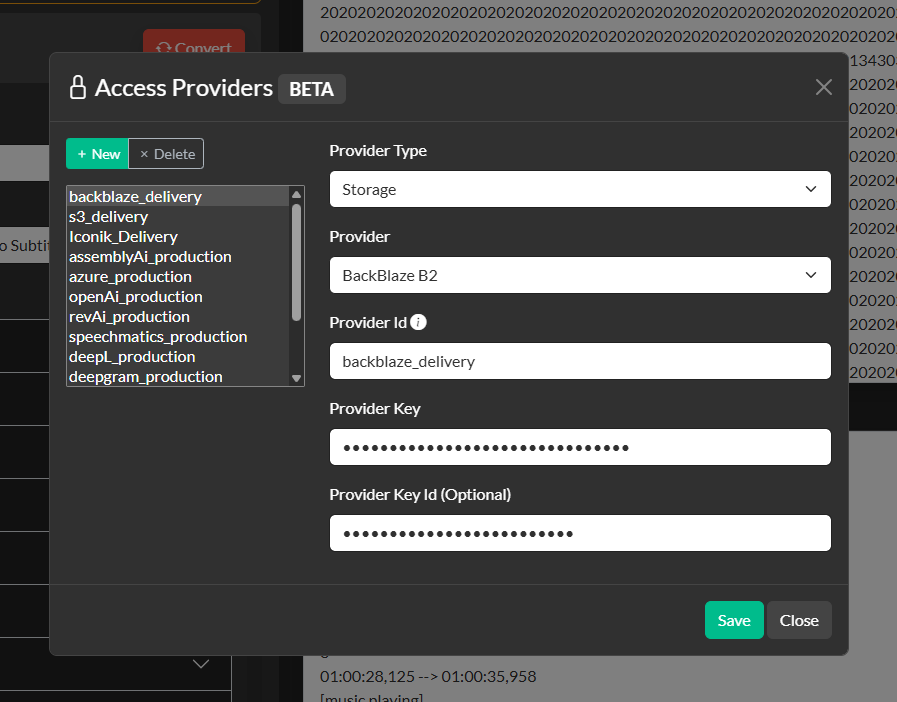
Click + New, select the provider type, enter a display name, and enter the required credentials. When you save the configuration a unique Provider ID (a UUID string) is assigned to that entry. This is the value you use in the provider_id fields of your Job Descriptions.
Because credentials are stored server-side and referenced by ID, your application code never contains raw third-party API keys. Different environments (staging vs. production) can use different Provider IDs that point to separate accounts, while keeping the same Job Description structure.
Transcription Providers
Transcription provider IDs are used in the transcribe_options.provider_id field for transcribe and align job types. Provider-specific parameters are passed through transcribe_options.provider_options and forwarded directly to the service.
"transcribe_options": {
  "source_language": "en",
  "provider_id": "YOUR_TRANSCRIPTION_PROVIDER_ID",
  "provider_options": {
    "model": "nova-2",
    "punctuate": true,
    "diarize": true,
    "utterances": true,
    "utt_split": 0.8
  }
}
The provider_options object varies by service. Refer to the transcription provider's own API documentation for available parameters. Common options across providers include model selection, speaker diarisation, punctuation, and language detection flags.
Translation Providers
Translation provider IDs are used in the translate_options.provider_id field for translate job types. Source and target language codes are passed directly to the service, so use the language code format supported by your chosen provider — for example, DeepL uses EN-US, Google Translate uses en, and Amazon Translate uses en.
"translate_options": {
  "provider_id": "YOUR_TRANSLATION_PROVIDER_ID",
  "source_language": "en",
  "target_language": "fr"
}
Storage Providers
Storage provider IDs are used in the delivery_options.provider_id field. The delivery_options.provider_options object contains the bucket, path, and any other provider-specific settings.
AWS S3 and Backblaze B2
"delivery_options": {
  "provider_id": "YOUR_S3_PROVIDER_ID",
  "provider_options": {
    "bucket": "your-bucket-name",
    "region": "us-east-1",
    "key": "path/to/output/captions.srt"
  }
}
Backblaze B2 uses the same configuration structure as AWS S3 because it supports the S3-compatible API. Configure Backblaze B2 credentials in an S3-type provider using your B2 application key ID and application key.
Google Cloud Storage
"delivery_options": {
  "provider_id": "YOUR_GCS_PROVIDER_ID",
  "provider_options": {
    "projectId": "your-gcp-project-id",
    "clientEmail": "service-account@project.iam.gserviceaccount.com",
    "bucket": "your-gcs-bucket",
    "fileName": "captions/output.vtt"
  }
}
Azure Blob Storage
"delivery_options": {
  "provider_id": "YOUR_AZURE_PROVIDER_ID",
  "provider_options": {
    "container": "your-container-name",
    "blobName": "captions/output.vtt"
  }
}
Platform Providers
Iconik MAM
Jobs for Iconik assets are submitted to a dedicated endpoint rather than the standard /jobs endpoint:
POST https://api.closedcaptionconverter.com/iconik
The payload format is the same as a standard job. When Closed Caption Converter receives a request at the /iconik endpoint, it reads the asset context automatically from the Iconik action payload, locates the associated subtitle files, processes them according to the job configuration, and writes the output back to the originating Iconik asset.
For setup instructions, including creating the Custom Action in Iconik and configuring the Iconik provider in the dashboard, see the Access Providers — Platform section.
Closed Caption Creator
When a Closed Caption Creator provider is configured and referenced in delivery_options, the processed output file is automatically registered as a new project in Closed Caption Creator and assigned to the configured workspace for editorial review.
Combining Delivery with Other Job Types
Delivery options can be combined with any job type — convert, transcribe, translate, or align. The output file is delivered to the specified destination after processing completes. The API response still returns the file content in the standard JSON envelope, so you can inspect the result even when delivery is configured.
{
  "job_type": "transcribe",
  "target_profile": "SubRip Video Subtitle Script",
  "media_path": "https://presigned-url/media.mp4",
  "transcribe_options": {
    "source_language": "en",
    "provider_id": "YOUR_TRANSCRIPTION_PROVIDER_ID"
  },
  "delivery_options": {
    "provider_id": "YOUR_S3_PROVIDER_ID",
    "provider_options": {
      "bucket": "my-caption-bucket",
      "region": "us-west-2",
      "key": "output/transcribed.srt"
    }
  }
}