Filters
Filters are transformation functions that operate on caption data between the decode and encode steps. Every filter receives a Closed Caption Project (CCPRJ) object, applies its transformation, and returns an updated CCPRJ. Most of the filters on this page work consistently regardless of whether you are converting SCC to SRT or TTML to WebVTT, because they operate on CCPRJ rather than on a specific file format.
Some advanced panels are not universal filters. Encoding Options, Decoding Options, 608/708 Options, Embed Options, V-Chip Information, and Program Information are profile-specific controls that only appear when the selected source or target profile supports them.
Filters are configured individually and applied in the order they appear in your job configuration.
Timing & Sync
The Timing & Sync filter is the primary tool for all timecode and frame rate operations. It controls the frame rate used to interpret source timecodes, the frame rate written to the target file, and any offset or adjustment applied to event timecodes during processing.
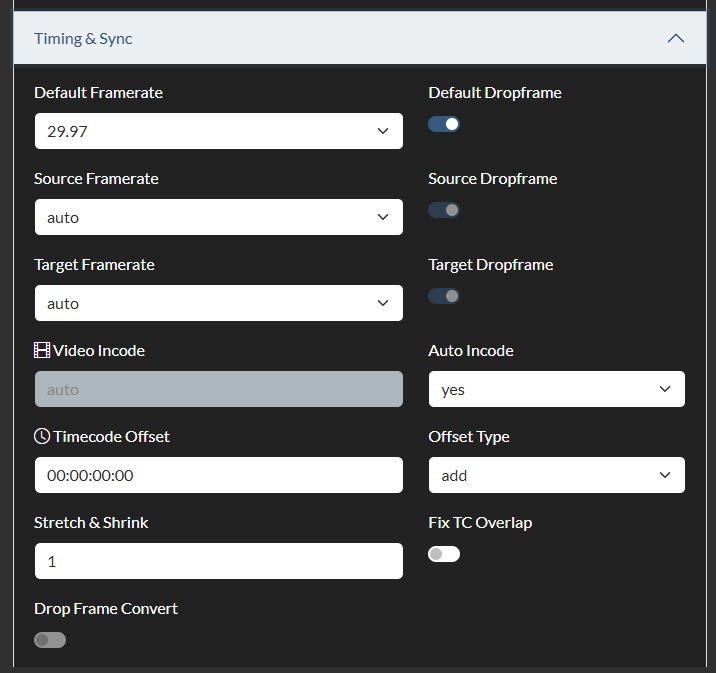
The filter exposes a Default Frame Rate that is used when the source format does not carry frame rate metadata and Closed Caption Converter cannot automatically detect it. The Source Frame Rate can be set explicitly or left on auto to let the engine read frame rate from the file. The Target Frame Rate determines the frame rate written into the output file. If source and target frame rates differ, all timecodes are mathematically converted. Drop-frame flags can be set independently for source and target.
In addition to frame rate conversion, the Timing & Sync filter supports a Timecode Offset, which shifts all event in and out times by a fixed SMPTE timecode value — useful for resyncing content to a new programme start. An Incode value can also be set to establish a new programme start time that all events are normalised against. Setting Incode to auto uses the detected first event as the programme start.
Stretch & Sync mode is available for cases where you have a reference point (such as a known dialogue line at a specific time) and need to proportionally scale all timecodes to match. This is useful when a file was created at one frame rate but the timecode numbers were not converted.
Segmentation & Conform
The Segmentation & Conform filter is used to extract one or more segments from source caption files and combine them into a single output file. It is essential in NLE-based workflows where a programme is assembled from multiple reels or edited segments, and the caption file must be conformed to match the final edit.
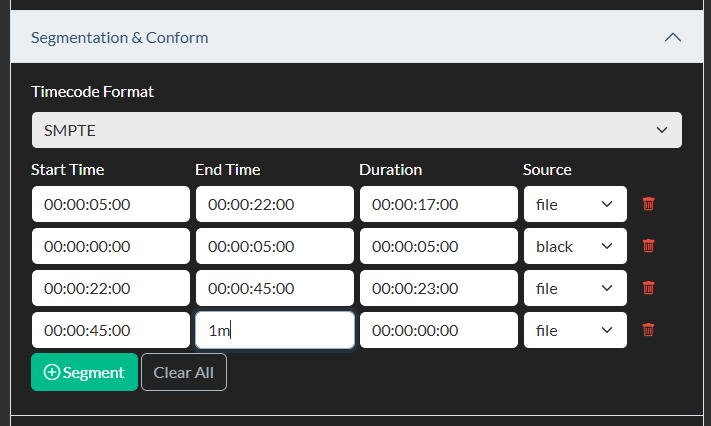
Each segment defines a region of the source file to extract using a start and end timecode. Timecodes can be expressed as SMPTE timecode (HH:MM:SS:FF), millisecond timecode (HH:MM:SS.mmm), seconds (0.000), or frame count. Multiple source files with different frame rates can be included in a single segmentation job, and each segment can specify its own source file reference.
When segments are assembled, you can optionally insert blank space between them using the Frame Gap setting. This is commonly used to place filler between segments in multi-reel deliveries that require silence between acts or specific timing for ad breaks between programme segments.
Although multi-source conform workflows are supported, first-time users will usually find it easier to start with one source asset per segmentation job and expand to multi-source jobs only when the delivery requires it.
Auto Format
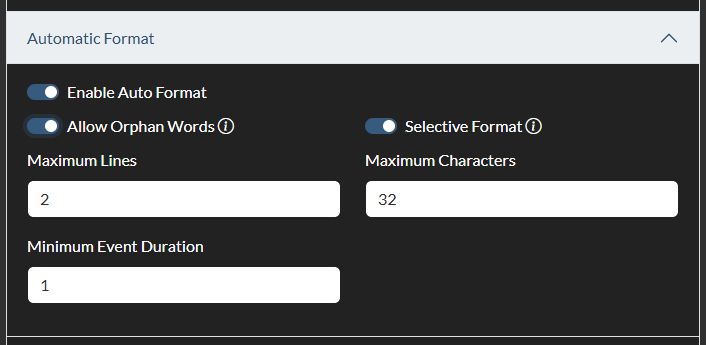
The Auto Format filter automatically re-wraps caption event text to conform to maximum line and character constraints. It breaks long lines at natural word boundaries and attempts to produce visually balanced subtitle lines. This is most useful after translation workflows (where translated text may be significantly longer than the original) or when converting from a format that has no line-length restrictions into one that does.
Maximum Lines and Maximum Characters define the upper bounds that every caption event must conform to. The engine will split or re-wrap events that exceed these limits. Minimum Event Duration sets the shortest allowed event in seconds — events shorter than this after splitting will not be split further.
This is especially important when the target format has hard limits. For example, SCC workflows commonly need tighter character-per-line control than WebVTT or SRT. Automatic reformatting can introduce additional lines or events, so tightly timed files should be reviewed after formatting.
Selective Format mode leaves events that are already within the configured limits unchanged, only reformatting those that exceed them. This is the recommended setting when you want to preserve existing formatting decisions in a file and only correct violations.
Allow Orphan Words controls whether the formatter may produce a single-word line when text balancing requires it. When disabled, single-word lines (orphans) are merged back with the preceding line even if doing so causes that line to exceed the maximum character limit.
Automatic Reading Speed
The Automatic Reading Speed filter adjusts the duration of caption events to ensure they meet reading speed targets. It is designed to make captions readable at a natural pace for viewers, which is especially important after format conversion or when caption timing is generated from transcription.
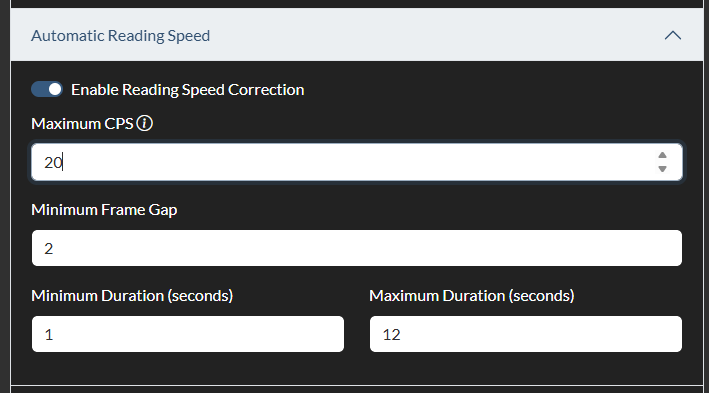
The filter can work in two modes: Characters Per Second (CPS) and Words Per Minute (WPM). You set a target CPS or WPM value, and the engine calculates the minimum duration each caption event must be on screen to be readable at that speed. If an event is shorter than the required minimum, its out-time is extended. The filter is aware of gaps between events and will not push an event's out-time past the in-time of the next event.
Search & Replace
The Search & Replace filter finds and replaces text strings within caption events. It supports both literal string matching and full regular expression patterns, making it suitable for everything from simple terminology corrections to complex structural transformations of caption text.
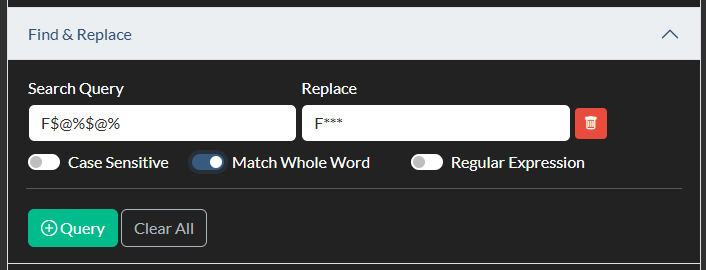
Each rule specifies a Find pattern and a Replace value. Rules are evaluated in order. Regular expression mode supports standard ECMAScript regex syntax including capture groups (referenced as $1, $2, etc. in the replacement string), character classes, and lookahead assertions.
Multiple rules can be added to a single filter, allowing you to apply a complete set of corrections in a single pass. This is commonly used to normalise terminology, remove unwanted formatting codes that survive format conversion, or apply company-specific spelling and style policies to caption text.
Search & Replace does not ignore downstream line-length or duration constraints. If a replacement makes an event too long for the selected output format, follow it with Auto Format or review the encoded result to confirm the event still fits the delivery specification.
Event Gap
The Event Gap filter inserts a blank frame gap between adjacent caption events. Many streaming platforms (including Netflix) require a minimum number of blank frames between events to prevent captions from appearing to "flash" when one event immediately follows another. The Event Gap filter automates this correction across an entire file.
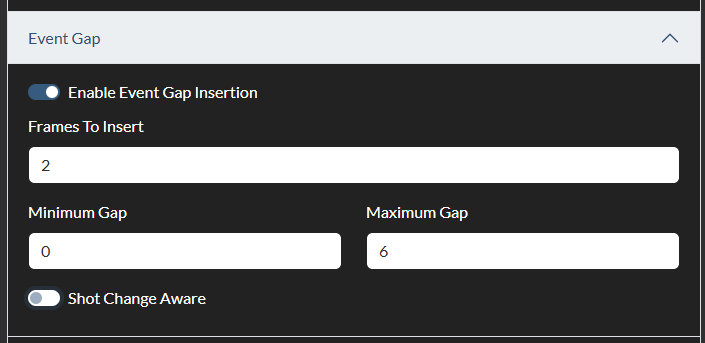
The Minimum Gap setting defines the number of blank frames that must exist between the out-time of one event and the in-time of the next. When the gap between two events is smaller than this value, the out-time of the earlier event is pulled back to create the required gap. The filter accepts Minimum and Maximum tolerance values — events with a gap already within this range are left unchanged.
The filter is Shot Change Aware: if shot change data is embedded in the source file, the filter will not pull an event's out-time across a shot change boundary. Fix Event Overlaps can be enabled in conjunction with Event Gap to first correct any events that already start before the previous one ends, before applying gap insertion.
Auto Correct Timing
The Auto Correct Timing panel is focused on readability-based timing correction. In the current UI it exposes Enable Reading Speed Correction, Maximum CPS, Minimum Frame Gap, and minimum/maximum event duration controls.
Use this panel when a file needs timing adjustments to meet reading-speed requirements after translation, editing, or format conversion. For frame rate conversion, offsets, and programme-start adjustments, use Timing & Sync instead.
Caption Style
The Caption Style panel provides cleanup and normalisation controls for common broadcast-caption text treatment operations rather than a full font and positioning style system.
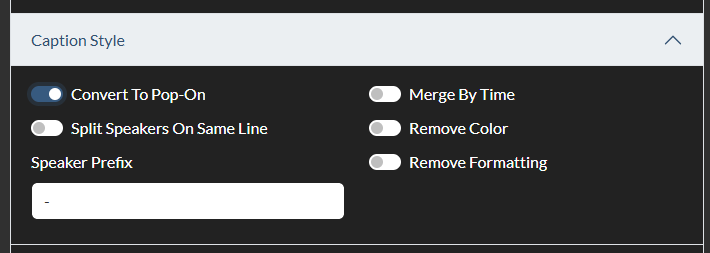
The available controls include Convert To Pop-On, Merge By Time, Split Speakers On Same Line, Speaker Prefix, Remove Color, and Remove Formatting. These are useful when you need to simplify a source file before converting it to a delivery format with stricter styling support.
Reposition
The Reposition filter adjusts the screen position of caption events. It supports shifting events to a new row or screen region, applying safe-area offsets, and normalising position data that may have been carried through from a source format with a different coordinate system.
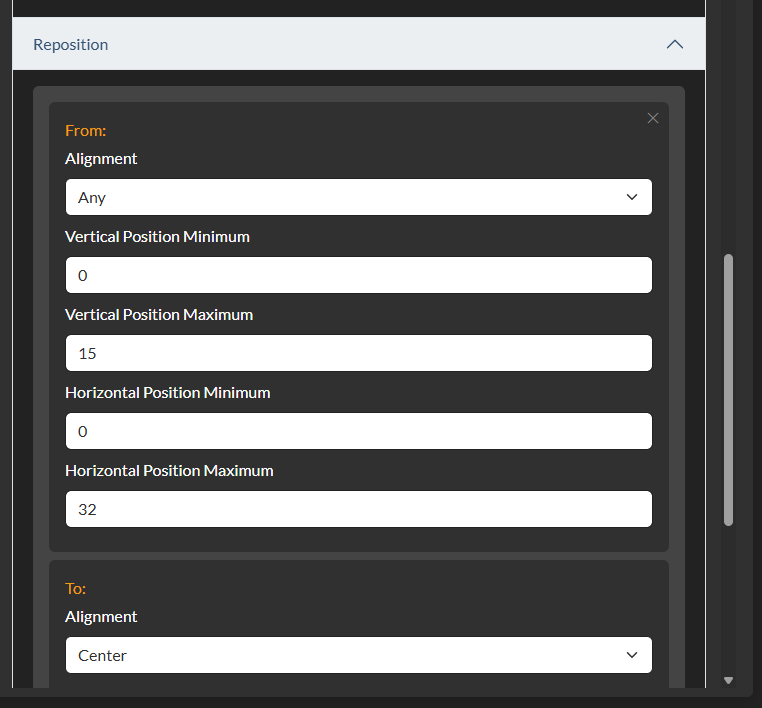
Position rules can be applied globally across all events or selectively based on the current position of each event. This is useful when converting between formats with incompatible positioning schemes — for example, converting a subtitle file that uses absolute pixel coordinates into a broadcast caption format that uses row numbers. Position rules can be applied globally across all events or selectively based on the current position of each event. Typical use cases include moving centre-positioned captions to bottom-centre safe areas, normalising left-justified captions to centred alignment, or constraining captions to a specific row and column range for broadcast delivery.
Remove Forced Subtitles
The Remove Forced Subtitles filter strips forced subtitle events from a caption file. Forced subtitles are events that are marked as appearing even when the viewer has subtitles disabled — they are typically used for translated dialogue, signs, or on-screen text in foreign languages. Some delivery workflows require a version of the subtitle file that contains only the forced events, and others require the full subtitle track with forced events removed.
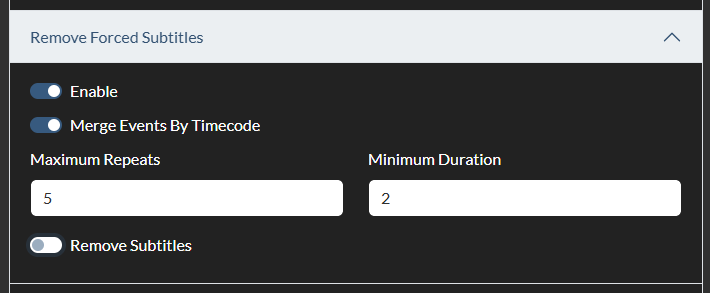
The filter can be configured to either remove all forced events or retain only forced events, producing the correct output for either delivery scenario without needing to manually edit the source file.
Automatic QC
The Automatic QC filter analyses caption events against a configurable style guide and flags events that violate the defined rules. Unlike other filters that transform caption data, QC does not change any events — it populates each event with issue markers that identify the specific violations detected. These issue markers are visible in the job output and can be used to generate QC reports or trigger review workflows.
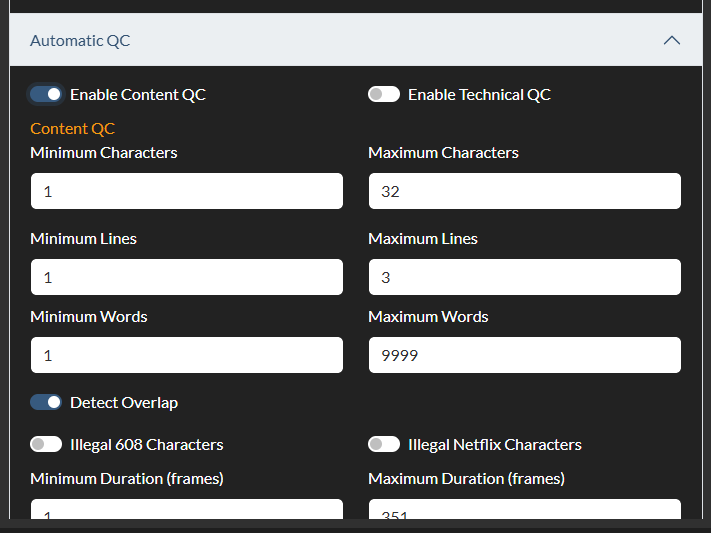
The filter has two independent test plans that can be enabled together or separately:
Content QC checks the text of each caption event against a set of configurable thresholds. Available checks include minimum and maximum character count per event, minimum and maximum line count, minimum and maximum word count, minimum and maximum event duration (in frames), minimum and maximum frame gap between events, minimum and maximum characters per second (CPS), minimum and maximum words per minute (WPM), detection of overlapping events, illegal CEA-608 characters, and illegal Netflix characters.
Technical QC checks the structural and metadata properties of the file rather than its text content. It validates frame rate metadata, timecode format consistency, and format-specific technical requirements.
The advantage of running QC as a filter rather than a standalone step is that it can be combined with corrective filters in a single job — for example, first applying Auto Format and Event Gap to correct known issues, then running QC to verify the result meets delivery specifications.
708 Options
The 708 Options panel appears when the selected target supports CEA-708 service mapping. It lets you map input caption files to Program A through Program F so you can build multi-service HD caption outputs.
This is an output-specific panel rather than a universal filter, so it only appears when the chosen target profile supports 708 data.
608 Options
The 608 Options panel appears when the selected target supports CEA-608 channel mapping. It lets you map input caption files to CC1, CC2, CC3, and CC4 for SD or mixed 608/708 broadcast outputs.
Like 708 Options, this is a target-specific output panel and will only appear for compatible formats.
Window
The Window filter defines the safe-area window within which caption text must be positioned. It sets the width and height of the caption area in columns and rows, which the encoder uses to constrain event placement relative to the displayable area of the screen.
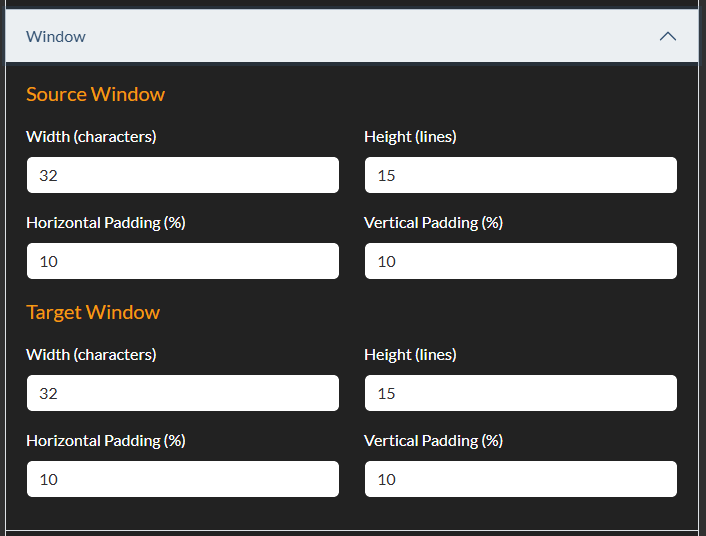
For broadcast formats, the standard window is 32 columns × 15 rows (the CEA-608/708 grid). For subtitle formats, the window is used to calculate the percentage-based position values written into TTML or WebVTT. Adjusting the window is most commonly required when converting between formats with different safe-area definitions or when a delivery specification requires a specific caption area inset from the screen edges.
File Encoding
The File Encoding filter sets the character encoding used when writing text-based output files. Most modern subtitle formats use UTF-8, but some legacy broadcast systems and older players require files in Latin-1 (ISO-8859-1), Windows-1252, or other encodings.
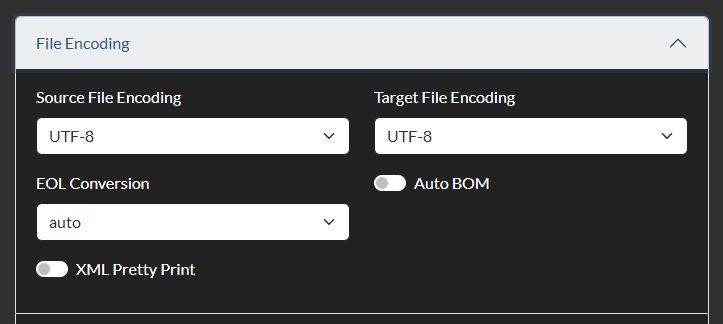
Selecting the correct file encoding is important for files that contain accented characters, special symbols, or non-Latin scripts. Writing a UTF-8 file when a legacy system expects Latin-1 will produce corrupted characters in the output. The filter also controls the line ending style (CRLF or LF), which may be significant for systems that are sensitive to line ending format.
Embed Options
Embed Options appears only for container-capable output workflows. It controls whether captions are wrapped as MXF Embed, AAF Embed (SC), AAF Embed (Linked), or left as None, depending on the selected target profile.
Because this is tied to the target format, treat it as an output option rather than a general-purpose filter.
V-Chip Information
V-Chip Information is an output-specific metadata panel for broadcast targets that support XDS data. Enable it when you need to include a rating system such as TV Parental Guideline, MPAA, Canadian English, or Canadian French, along with any supported content descriptors.
Program Information
Program Information is another output-specific metadata panel for broadcast targets that support XDS or similar embedded metadata. It lets you include fields such as Program Name, Program Length, and advisory keyword groups used for downstream identification and logging.
If you do not see V-Chip Information or Program Information, select a target profile that supports embedded broadcast metadata first.